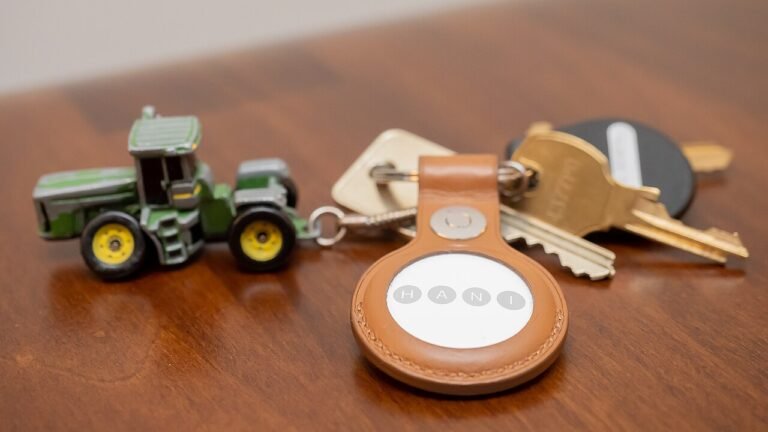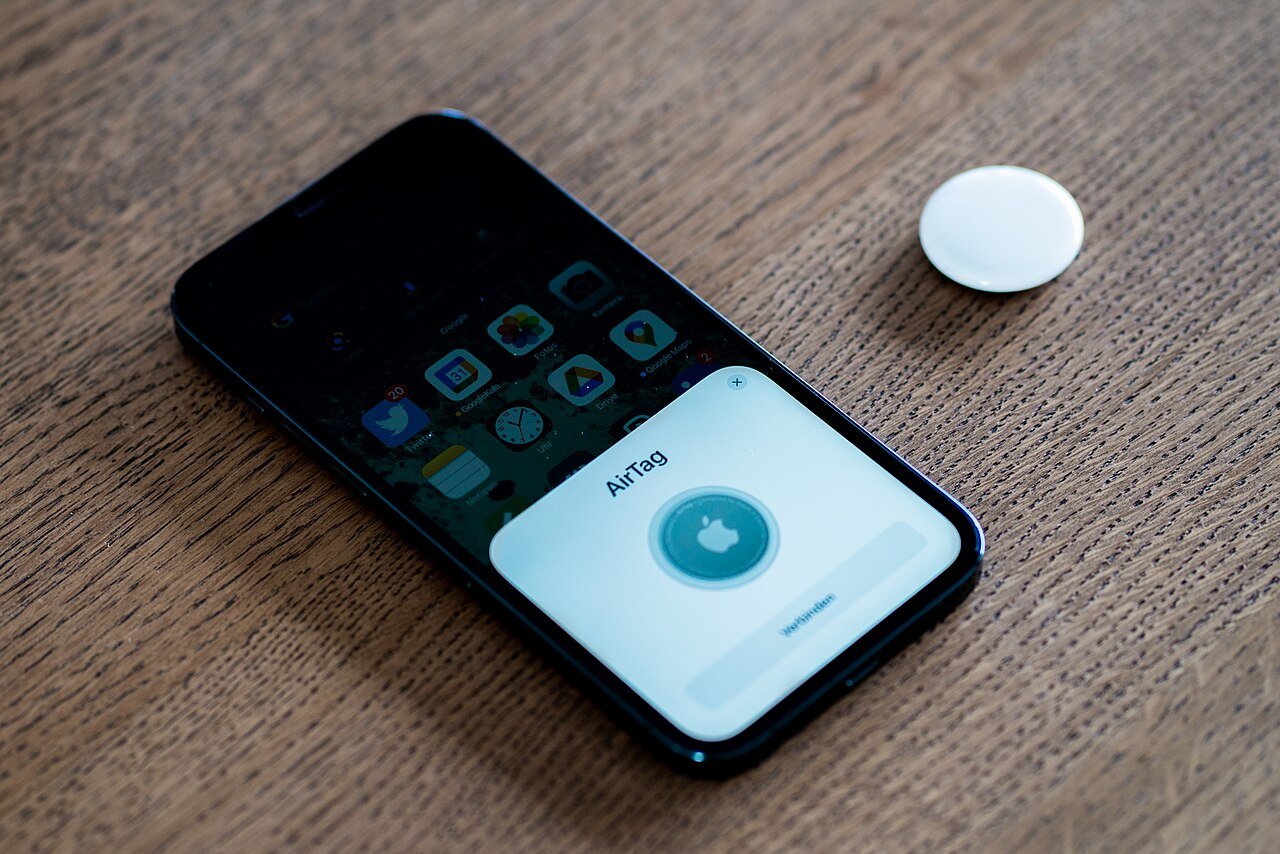
To set up an AirTag, hold it close to an iPhone that runs iOS or iPadOS 14.5 or later, tap Connect when the card appears, pick a name for the item, accept the terms, and tap Done. That is the whole process on a phone that is ready. If the card never shows up, Apple has a second route through the Find My app, and a short checklist for the cases where neither works. All of the steps below come from Apple’s AirTag setup instructions.
Check the phone before you start
A standard AirTag needs iOS or iPadOS 14.5 or later. Apple lists a higher floor for the AirTag (2nd generation), which needs 26.2.1 or later. If your phone is on an older release, update first.
The same Apple page gives a short checklist of settings that have to be in place for the tag to work once it is set up:
- Bluetooth and Location Services turned on, with Precise Location recommended
- The Find My network turned on
- iCloud Keychain turned on
- A good Wi-Fi or cellular connection
Going through this list before you open the packaging covers every cause Apple itself names for a tag that will not connect.
The first method: bring the tag near the phone
Apple lists this method first. Hold the AirTag near the iPhone and wait for the setup card to appear. Tap Connect. The phone then asks you to choose what the tag is attached to. You can pick a category from the list, or choose Custom Name and type your own, with an emoji if you like. Then tap Agree or Continue, and finish with Done.
One caution from the page: if you have several AirTags, bring only one near the phone at a time.
The name is worth a moment of thought. It is what you will see in the list of items later, and it is the label that tells you which key ring or bag you are looking at when the list gets longer. A name like “Gym bag” tells you more at a glance than a default category does.
Two practical habits help here. Give each tag a name that describes the thing, not the tag, so that “Blue suitcase” beats “AirTag 3”. And finish one tag completely before you open the next package. The category list is a shortcut, and Custom Name is there for everything the list does not cover. Neither choice changes how the tag works; both only change what you read later.
The second method: add it from the Find My app
If the card does not appear, open the Find My app, tap Items, tap Add, and choose AirTag or Other Item. From there the process runs the same way as before: connect, name it, accept, finish. This route is also the one to use when you are adding a tag some time after you first unpacked it, or when the first attempt was interrupted.
The page lists a short sequence: Connect, name, agree, Done. The second route below reaches the same screens from a different starting point. If you have done it once, you have done it for every tag you will add.
How many items one account can hold
Apple sets a ceiling of 32 items per account. The count is not always one for one, because some products take up more than one slot. The page lists three cases.
| Item | Counts as |
|---|---|
| AirPods Max | 1 |
| AirPods and AirPods Pro (1st generation) | 2 |
| AirPods Pro (2nd generation) and later | 3 |
For most households the limit never comes up. A family that tags keys, a backpack, a bike and a suitcase is far from 32. It matters mostly for someone who also has several pairs of earbuds on the same account, because each pair uses up more than one slot.
If the tag will not connect
Return to the checklist. The usual suspects are the ones on it: Bluetooth or Location Services off, the Find My network disabled, iCloud Keychain off, or a weak connection. Turn on whatever is missing, bring the tag back near the phone, and try again.
One more Apple page is worth having open while you handle the tag. Its battery page identifies the AirTag battery as a CR2032 lithium 3V coin cell, and carries a clear warning: it is a choking hazard, and children should be kept away from the battery. Seek immediate medical attention if a battery is suspected to be swallowed or inserted inside any part of the body. That warning belongs on any day you open the tag, including the day you unpack it.
Once the tag is on your account, the Find My app is where you will look for it. When Apple launched AirTag, it said Precision Finding, the close-range guidance feature, used the U1 chip and was available on iPhone 11 and iPhone 12 models. That describes 2021 hardware, so check Apple’s current documentation for your own phone before you assume the feature is there.
After setup: what the tag will do to other people
Setting up a tag attaches it to your account, and that carries a responsibility. Apple’s unwanted-tracking page explains that if an AirTag is separated from its owner and seen moving with someone over time, that person’s iPhone can alert them with a message such as “AirTag Found Moving With You”, and the tag itself makes a sound. A tag slipped into another person’s bag or car can set off exactly that. Tracking laws differ from state to state, and the guide on GPS trackers for personal use explains where the lines are drawn before you attach a tracker to anything that is not yours.
Our take
Setup is quick when the phone is ready: update to the required software, switch on Bluetooth, Location Services, the Find My network and iCloud Keychain, hold one tag near the iPhone and follow the card. Use the Find My route if the card never appears. Name the tag for what it is attached to, keep the battery away from children, and attach it only to things you own.
Common questions about setting up an AirTag
What iPhone software does a standard AirTag need?
Apple lists iOS or iPadOS 14.5 or later for a standard AirTag. The AirTag (2nd generation) needs 26.2.1 or later.
The setup card does not appear. What now?
Open the Find My app, tap Items, tap Add, and choose AirTag or Other Item. Also confirm Bluetooth, Location Services, the Find My network and iCloud Keychain are on, and that you have a good Wi-Fi or cellular connection.
Can I set up several AirTags at once?
Apple says to bring only one AirTag near the iPhone at a time during setup.
How many items can I add?
Up to 32. AirPods Max count as 1, AirPods and AirPods Pro (1st generation) as 2, and AirPods Pro (2nd generation) and later as 3.
Behind this review
TrueSpyTech does not operate a test lab, and no article here rests on a unit we plugged in ourselves. Research pulls the spec sheets and the relevant law, the pattern in owner reports fills in what a spec sheet will not admit, and an editor signs off before anything goes live. Ratings are locked before affiliate links go in, never after. The full protocol is on our How we review page.
Google lets you pick which sites come up first in your own results.