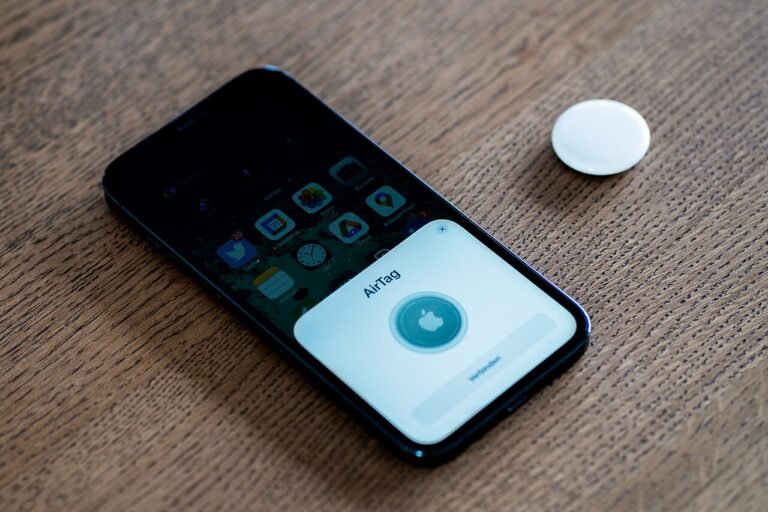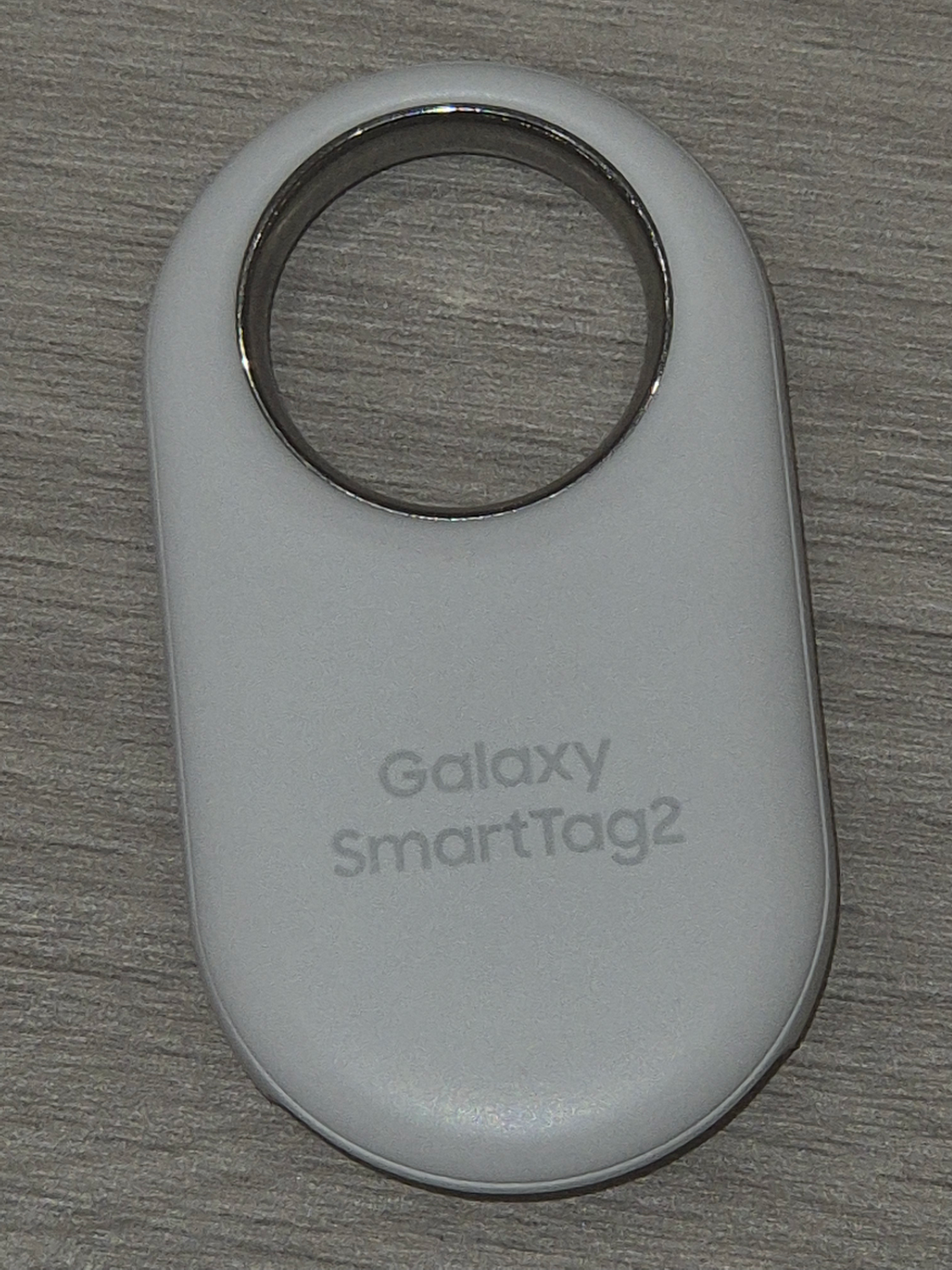
To set up a Galaxy SmartTag2, open the SmartThings app on a compatible Samsung Galaxy phone, remove the film from the battery tray (or insert the battery), press the tag’s button, and tap Add when the pop-up appears. The tag makes a sound when it is ready to pair. Once it is registered, its location shows on the SmartThings Find map. The steps below follow Samsung’s own support pages, which are the regional Samsung UAE versions, because no US page turned up. Menu names can differ slightly by region and software version.
What you need before you start
Samsung’s pairing page lists the requirements in plain terms: Android 9.0 or later, a compatible Samsung Galaxy device, a Samsung account that is signed in on the phone, and an updated SmartThings app. Another Samsung page about the tag’s button routine mentions Android 8.0, so the two pages disagree on the minimum. The higher number is the safer one to plan around, and it is the one on the page that actually covers pairing.
Two of those items are quick to check and easy to overlook. Open the Galaxy Store or Play Store and look for a SmartThings update, and confirm that your Samsung account is the one signed in under your phone’s settings. A tag registers to an account, so doing this first avoids a failed attempt that has nothing to do with the tag itself.
Pairing the tag, step by step
Start with the app open on the phone. Samsung’s instruction is to remove the film between the battery tray and the battery, or to insert the battery if it is not already in. Then press the tag’s button. The tag makes a sound when it is ready, and a pop-up should appear on the phone. Tap Add and follow the prompts.
If the pop-up does not appear, there is a manual route. In SmartThings, go to Devices, tap the plus sign, tap Add, choose Samsung devices, and then pick Tag/Tracker. The page also describes a QR route: Devices, then the plus sign, then Scan QR code. Use whichever one matches what you have on hand.
| Situation | Where to go in SmartThings |
|---|---|
| Pop-up appears after pressing the button | Tap Add on the pop-up |
| No pop-up | Devices, plus sign, Add, Samsung devices, Tag/Tracker |
| You prefer a code | Devices, plus sign, Scan QR code |
After pairing, the tag’s location shows on the SmartThings Find map. That is the screen you will come back to whenever you want to look for the item the tag is attached to.
If registration fails
Samsung’s page says to try registration again two or three times if it fails. It also says that performance may degrade when multiple devices are connected at the same time. If you are setting up several tags, one at a time is the cleaner approach: finish one, then press the button on the next. Beyond those two points, the page does not give a long troubleshooting list, so a repeated failure after a few tries is a reason to contact Samsung support, not to keep guessing.
A few sensible checks follow from what Samsung does say. Confirm that Bluetooth is on and that the phone is close to the tag, since the home screen page names Bluetooth and range as the first things to check when a device does not appear. Confirm that the app is updated. Then try again.
Putting the tag on your home screen and map
Samsung has a separate page for making the tag easier to reach. To add it to the home screen, go to SmartThings, then Life, then Find, tap the three dots, and choose Add to Home screen. To keep it handy on the map, tap the three dots again, choose Set favourite, select the device and tap Save.
If the tag does not appear after that, the page points back to Bluetooth and range. This is the same pair of checks as in the pairing step, which is a hint that most hiccups come down to the phone not being able to talk to the tag at that moment.
A favourite is worth setting for anything you look for often, such as a bag or a set of keys. A tag that sits on a map you never open is not much help, and the shortcut turns the lookup into a single tap from the home screen.
Using the button as a routine trigger
The tag has a button, and Samsung’s automation page explains how to make it do something. In SmartThings, go to Devices, select the tag, tap Automation, then Actions, and choose Add what this routine will do. The trigger is pressing the tag’s button, or holding it, depending on how you set it up.
What the routine does after that is up to you and to what your SmartThings account can control. The page covers the setup path and not a list of possible actions, so look at the options in the app to see what your own devices offer.
Before you attach it to something
A tag is a tracking device, and attaching one to an object you own is different from attaching one to something that belongs to someone else. Rules for tracking vary by state. If you are not sure where the line sits, the guide to GPS trackers for personal use covers it.
Our take
Setup is short if the basics are in place: a compatible Samsung Galaxy phone, a signed-in Samsung account and an updated SmartThings app. Press the tag’s button and tap Add, or use the Devices menu or the QR code if no pop-up shows. Retry a few times if registration fails, add a home screen shortcut or a favourite on the map, and use the routine feature only if you have a use for it.
Common questions about setting up a SmartTag2
What do I need to pair a SmartTag2?
Samsung lists Android 9.0 or later, a compatible Samsung Galaxy device, a signed-in Samsung account and an updated SmartThings app.
No pop-up appeared. How do I add the tag?
In SmartThings, go to Devices, tap the plus sign, tap Add, choose Samsung devices and then Tag/Tracker. You can also use Devices, the plus sign, then Scan QR code.
Registration failed. What should I do?
Samsung says to try again two or three times. It also notes that performance may degrade when multiple devices are connected at once, so set up one tag at a time.
Where does the tag’s location appear?
After pairing, the location shows on the SmartThings Find map. You can add a shortcut to the home screen from SmartThings, then Life, then Find, using the three dots menu.
Behind this review
TrueSpyTech does not operate a test lab, and no article here rests on a unit we plugged in ourselves. Research pulls the spec sheets and the relevant law, the pattern in owner reports fills in what a spec sheet will not admit, and an editor signs off before anything goes live. Ratings are locked before affiliate links go in, never after. The full protocol is on our How we review page.
Google lets you pick which sites come up first in your own results.