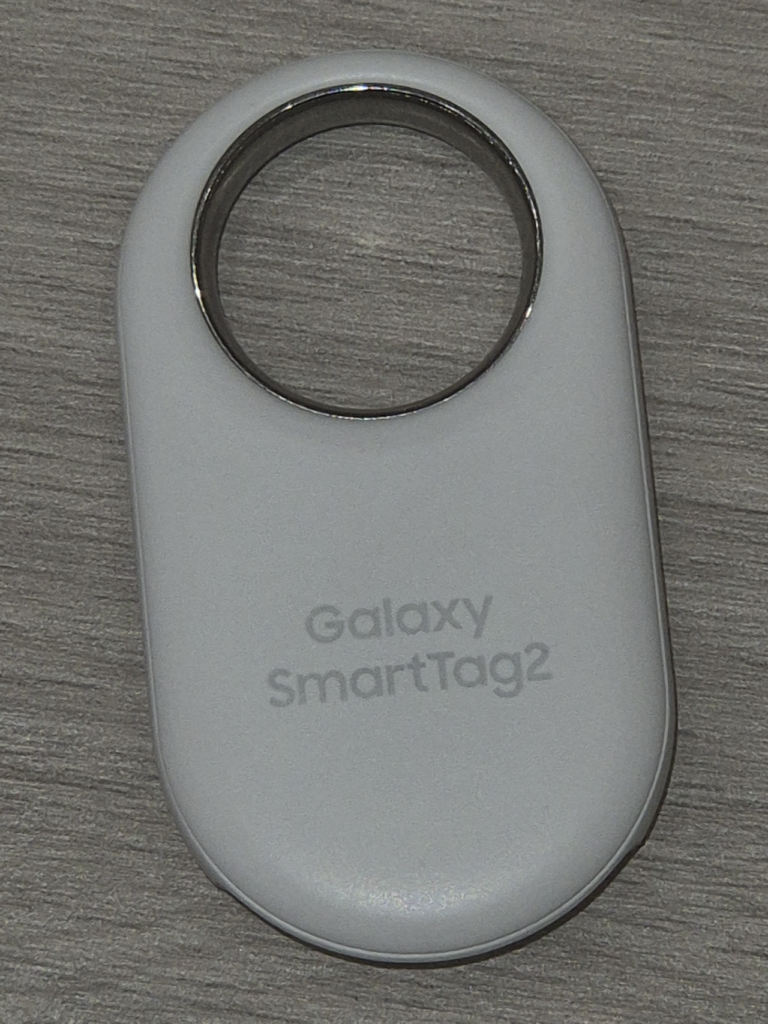
Short answer: “Samsung Find My Device” is a search phrase that blends two different services. Google’s network for locating Android phones, tags, and accessories used to be called Find My Device and is now called Find Hub. Samsung’s own locator is a separate app that Samsung’s support pages call SmartThings Find. Both can sit on the same Galaxy phone, and this guide sorts out which one does what, how to switch the Google one on, and which tags plug into it.
Two names, two services
Google describes the change in its own announcement: it upgraded Find My Device into Find Hub, widening it from locating phones to locating belongings, family, and friends through partner products. If an older tutorial tells you to open “Find My Device,” it means the app you now find under the Find Hub name.
Samsung is where the confusion starts. Samsung’s support page for lost Galaxy devices walks you through SmartThings Find, which is Samsung’s own service tied to a Samsung account. Samsung’s separate support article on Google’s tool describes Find Hub as something Galaxy phones get through Google Play Services. So a Galaxy owner can legitimately run both: Samsung’s service for Samsung hardware, and Google’s for the wider Android world.
Which should you use? If every device and tag you own is Samsung, Samsung’s own app is the straightforward path. If you mix brands, or you want a non-Samsung tag, Find Hub is the one with the broader list of partners. Nothing stops you from setting up both, and for a household with a Pixel, a Galaxy, and an older hand-me-down phone I would.
What the Find Hub network actually is
Find Hub is not only a map. It is a network: other Android phones nearby can help report where your offline device or tag is, so a phone with no signal or a tag with no cellular radio can still show a last-known position. Google’s own wording in the setup material is that the location information is end-to-end encrypted, and the Be ready to find a lost Android device page spends most of its length on the practical settings instead.
The part you control is how much your own phone takes part. That page lists four offline-finding settings:
| Setting | What Google says it does |
|---|---|
| Off | The device does not store locations or take part in the network |
| Without network | Uses stored, encrypted recent locations only |
| With network in busy places only | Network help in high-traffic areas, if the device has a PIN or password |
| With network everywhere | Network help in all areas, again with a PIN or password |
My view: “busy places only” is the sensible default for most people, because a phone lost on a crowded street is far more likely to be passed by other Android devices than one lost on a rural road. If you routinely lose things in quiet places, “everywhere” costs you little you were not already giving up by owning the phone. Choose “off” only if you have a specific reason not to join.
Setting up your phone, step by step
The checklist on Google’s page is short. Check that you are signed in to a Google Account, turn on Location and the “Use location” setting, and check that “Allow device to be located” is on. Then install the Find Hub app from Google Play. Google adds that some of the steps only work on Android 14 and up, and that on Android 8.0 and lower you turn on “Store recent location” in Settings instead.
Pick your offline-finding setting from the table, and make sure the phone has a PIN, pattern, or password, since the two network modes depend on it. That is the whole setup for the phone itself. The day you lose it is the wrong day to discover Location was off, so spend the two minutes now.
To find a device later, Google lists two routes: the Find Hub app on another device, or the website at android.com/find after signing in with your Google Account. Either lets you ring, locate, secure, and erase the lost device. Erasing is the last resort, not the first move, because a wiped device cannot be located in the same way afterwards.
Which trackers work with it
Google’s announcement names partners rather than a fixed catalog: luggage finders from July and Mokobara, ski trackers through a Peak integration, Disney-themed Bluetooth tags from Pixbee, and a “moto tag” that adds ultra-wideband for closer-range finding. It says the system works over Bluetooth and ultra-wideband and supports cross-platform sharing. Two items in that post were still future tense when it was published: satellite connectivity and airline sharing of tag locations. Check Google’s current pages before counting on either.
Tags sit alongside everyday accessories. Google’s sharing page covers trackers and items such as car keys with tracking built in, and says you can share an accessory or tag with up to 10 people so everyone in a household can locate it. That feature needs Android 9 or later. Sharing a lost item’s location through a web link needs a Find Hub compatible tag, an Android device connected to it, and a Google Account.
If you are still deciding whether a network tag is the right tool at all, our look at GPS trackers with no monthly fee sets Bluetooth tags next to loggers. A tag gives you a rough last-seen spot, not a live track, and that distinction decides what you should buy.
Unknown tracker alerts on Android
The same ecosystem has a protective side. Google’s unknown tracker alerts page says your phone can warn you when a tracker that is not yours might be moving with you. It works with Find Hub network compatible tags and headphones, and with Apple AirTags, and it is available on Android 6 and up.
You do not have to wait for an alert. Open Settings, then Safety and Emergency, then Unknown tracker alerts, and tap “Scan now.” The scan takes about 10 seconds. If something turns up you can tap “Play sound” to locate it, and Google notes that playing the sound does not notify the tracker’s owner. For compatible trackers there is also “Find nearby,” which uses Bluetooth to guide you closer. Tapping “Next steps” shows options that may include getting tracker information, contacting law enforcement, or disabling the tracker by following the manufacturer’s instructions.
One limit worth knowing: Google says the system is built so you receive one alert per tracker each day. A manual scan is the way to check on your own schedule, such as when you leave a place you are uneasy about.
Our take
Treat “Samsung Find My Device” as two jobs. Samsung’s SmartThings Find covers Samsung hardware. Google’s Find Hub, the renamed Find My Device, covers Android phones, partner tags, and the unknown tracker alerts that protect you. Turn Find Hub on today, choose an offline-finding mode on purpose, and run a Scan now in Safety and Emergency once so you have seen how it works before you need it.
Common questions about Samsung Find My Device and Find Hub
Is Find My Device the same as Find Hub?
Per Google, yes. Its announcement says Find My Device was upgraded into Find Hub.
Does Samsung have its own Find My Device?
Samsung’s support pages describe SmartThings Find as its own lost-device service. Another Samsung article describes Google’s Find Hub as available on Galaxy phones through Google Play Services.
Do I need a tracker to use Find Hub?
No. Setup on a phone needs a Google Account, Location, and “Allow device to be located,” plus the Find Hub app. Tags are an optional extra.
Will my Android phone warn me about an AirTag?
Google says unknown tracker alerts work with Apple AirTags as well as Find Hub network tags, on Android 6 and up. You get at most one alert per tracker per day, and you can run Scan now yourself.
How many people can share one tag?
Google says you can share an accessory or tag with up to 10 people, on Android 9 or later.
Behind this review
TrueSpyTech does not operate a test lab, and no article here rests on a unit we plugged in ourselves. Research pulls the spec sheets and the relevant law, the pattern in owner reports fills in what a spec sheet will not admit, and an editor signs off before anything goes live. Ratings are locked before affiliate links go in, never after. The full protocol is on our How we review page.
Google lets you pick which sites come up first in your own results.